Save Recipes from Screenshots to Your Personal Cookbook
Hundreds of recipe screenshots buried in your camera roll.
Poach saves them forever.
Available on iPhone & Android. No account required.
How to save a recipe from a screenshot
A few taps. That's all it takes.
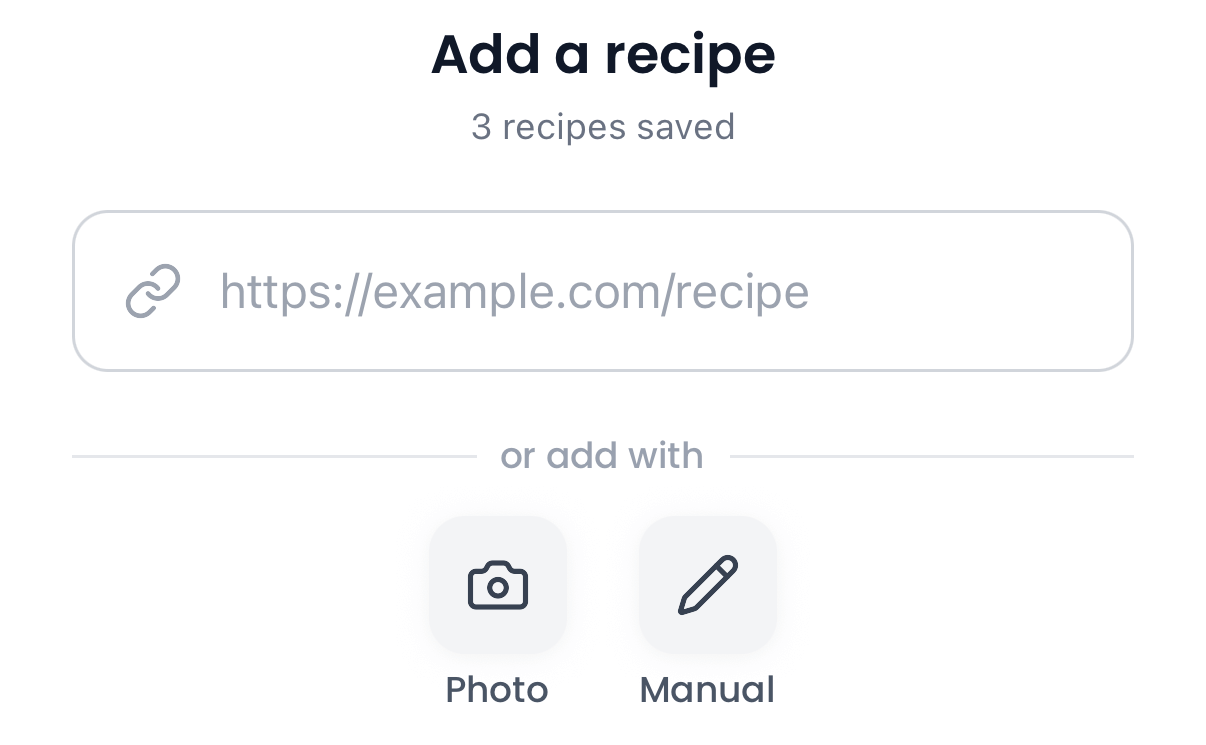
Tap Add, then Photo
Open Poach, tap the Add tab, and select Photo to import a screenshot.
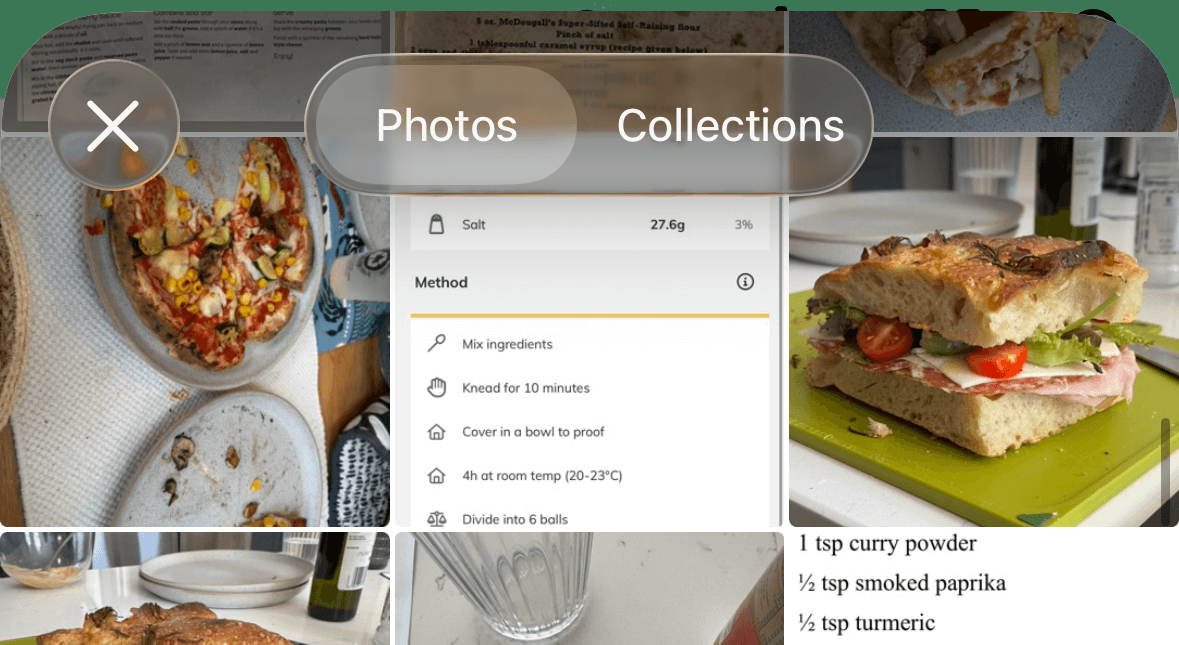
Select your screenshot
Pick the recipe screenshot from your camera roll.
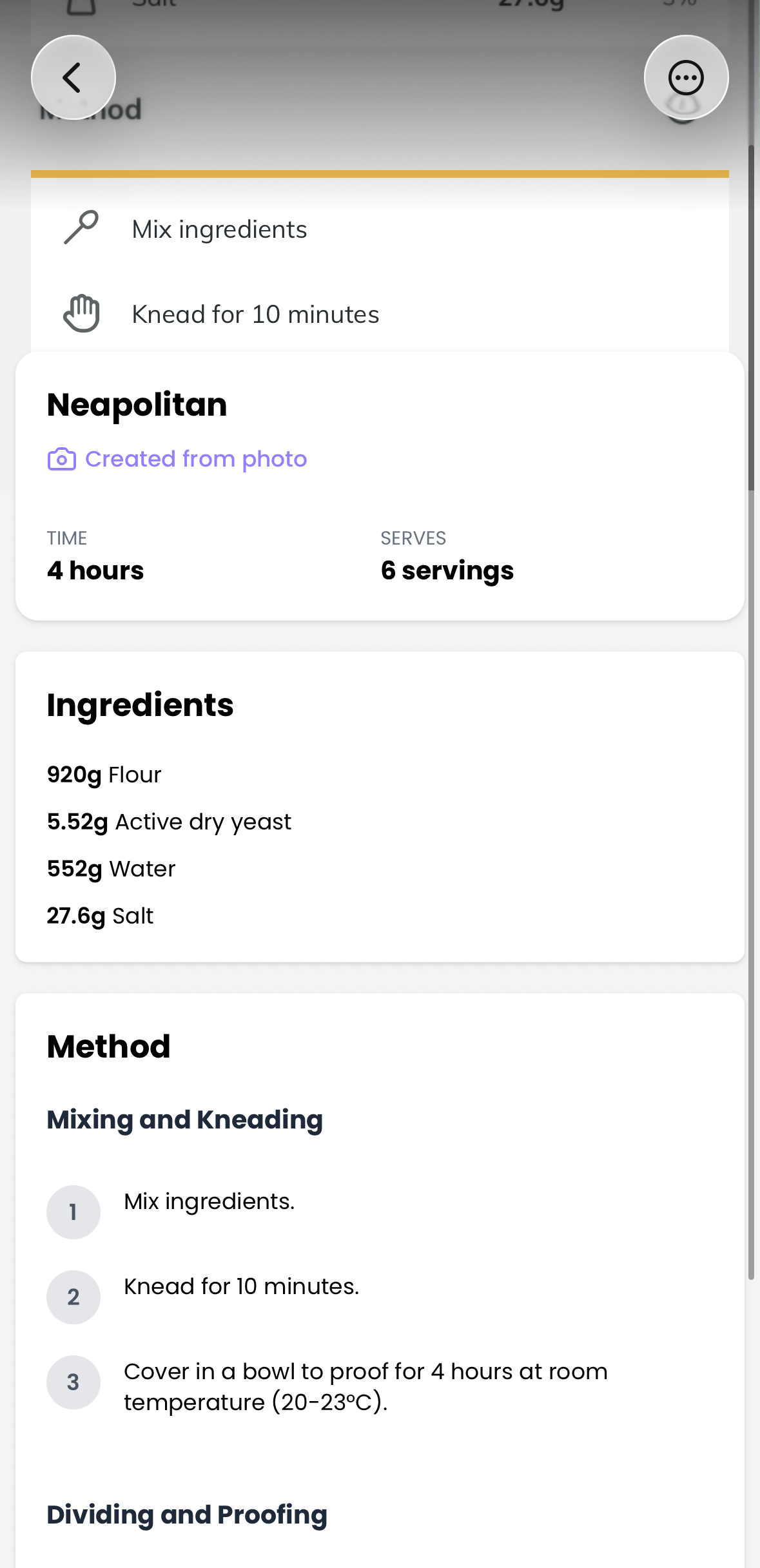
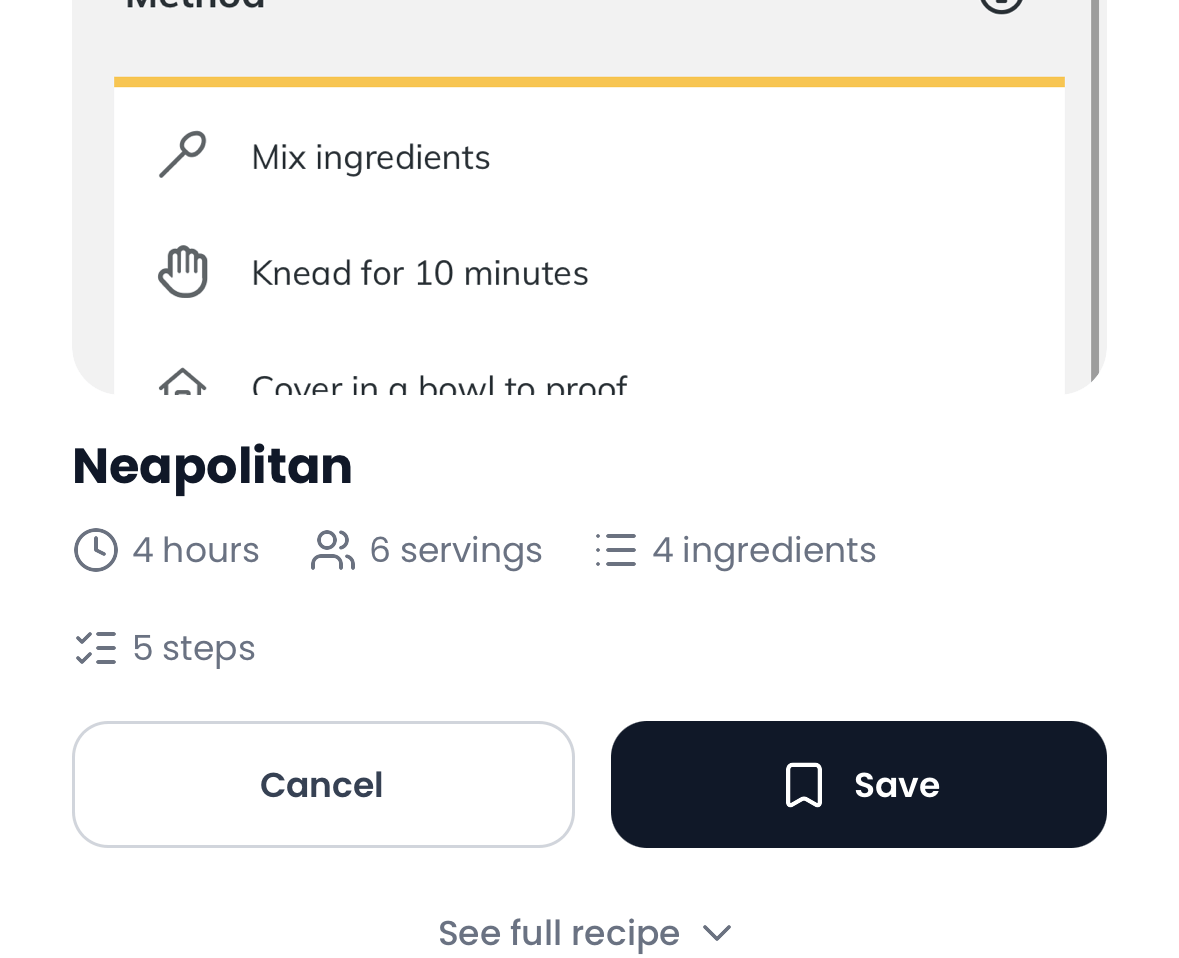
Recipe saved
AI reads the screenshot and saves the recipe to your cookbook. Searchable and available offline.
Works with any recipe screenshot
Blog recipes, social media posts, group chat messages, Pinterest pins—if you've screenshotted a recipe, Poach can save it.
Just tap Add, select Photo, pick the screenshot from your camera roll, and Poach extracts the recipe.
Have a physical cookbook or recipe card? Scan from recipe books
Why Poach?
Save recipes in seconds. Find them when you're ready to cook.
Clear the camera roll
Stop hoarding recipe screenshots you can never find. Import them to Poach and free up your photos.
No account needed
Download, import, done. No signup, no email, no password required.
All your recipes, one place
Screenshots and links—all searchable in one app. No more scattered bookmarks.
Questions?
How do I save a recipe from a screenshot?
Open Poach, tap the Add tab, then select Photo and pick the screenshot from your camera roll. Poach reads the text and saves the recipe to your collection.
Does it work with any screenshot?
Poach works with screenshots of recipe blogs, social media posts, group chat messages, Pinterest pins, and any other image that contains recipe text.
What if the screenshot is cropped or partial?
Poach extracts whatever recipe text is visible in the screenshot. For best results, make sure the ingredients and instructions are fully visible.
Do I need to create an account?
No. You can start saving recipes immediately—no sign-up required. Your recipes are stored on your device.
Does it work without internet?
Yes. Your recipes are saved locally on your device, so you can view and cook from them even without Wi-Fi or cell service.
Does Poach work with other sources?
Yes. Poach saves recipes from TikTok, Instagram, websites, recipe books, and more.
Is Poach free?
Yes. Start free, upgrade when you need more.
Save your first recipe screenshot
Download Poach and try it in seconds.


Free to download. No account needed.